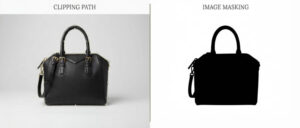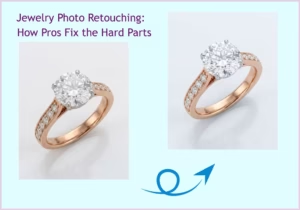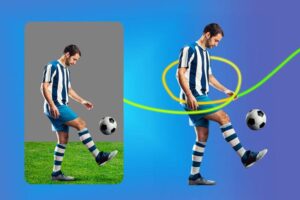


Are you mainly working with photos? If yes, it means those photos definitely go through a lot of changes after you take them. This is called post-processing. Sometimes, you can even change the file type, especially when turning a photo into something that looks like an illustration. Or, you can take an illustration and make it look more like a photo, and vice versa!
Interestingly, every single file type has its own special qualities and uses. So, when you are working with raster graphics (which is what photos are). In this case, you need to pick the best photo editing software for this job. Furthermore, Adobe Photoshop is not the right choice in every single situation.
So…you need to try a new, fresh, and worthwhile raster graphics editing software this year. In the sections mentioned below, we are going to answer “what is a raster graphic file?” In addition to that, we will share a list of top raster graphics software that offers the best programs according to your requirements. We hope you will like this well-researched guide.
Let’s follow the footsteps below!
Quick Overview of 8 Raster Graphics Editing Software List
Let’s have a one eye view of 8 best Raster Graphics Editing Software List
| Software | Price | OS | Table Compatibility | Level of expertise |
|---|---|---|---|---|
Affinity |
$49.99 |
Windows, Mac |
iPad only |
Beginners to advanced |
Pixelmator |
$39.99 |
Mac |
iPad only |
Intermediate to advanced |
Paint.NET |
Free |
Windows |
Under development |
Beginners |
Illustrator |
$20.99 / month |
Windows, Mac |
No |
Advanced |
GIMP |
Free |
Windows, Mac, Linux, and more |
Yes |
Intermediate to advanced |
Pixlr X |
Free |
iOS and Android app |
Yes |
Beginners to intermediate |
Photoshop |
$20.99 / month |
Windows, Mac |
iPad only |
Advanced |
Corel Painter |
$429; $229 |
Windows, Mac |
Yes |
Intermediate to advanced |
Artweaver |
Free; 34€ |
Windows |
Yes |
Beginners to Advanced |
What is a Raster Graphic File?

A raster graphic file is just a grid of tiny dots, also known as a “bitmap image.” These dots are called pixels. They all join up to form the complete picture. Each small pixel, or square, holds a specific color or shade. Honestly speaking, one pixel is not important alone. Plus, all the pixels together create the final image that you see.
Moreover, raster graphic files are typically used when you ought to change non-line images. This includes things like digitized photos, art you have scanned, or very detailed illustrations and graphics.
Did you know why? This is because of the following reasons:
- These pictures have smooth color changes.
- Line work that is not perfectly defined.
- A lot of complex details.
More importantly, being able to change the image pixel by pixel will help you create a perfect picture. This is precisely why raster graphic files are so ideal for product photography. Many raster programs include tools and functions that let you edit your product images right down to the smallest elements. On the flip side, you can fine-tune details like tones, shades, and blends for a polished final look.
Raster vs. Vector Image

Although raster graphic files rely on those square pixels we talked about, vector images work very differently. They are actually controlled by mathematical formulas. These formulas create paths, curves, circles, and various other shapes. Moreover, vector designs or images offer greater flexibility in use. That’s because they are easily scalable.
Not only that, their quality doesn’t depend on resolution and they are typically smaller in file size. For example, vector images are perfect for creating business logos. They are also ideal for promotional materials of any kind. This is because the mathematical paths ensure crisp and clean details. Furthermore, these details can be easily sized up or down to perfectly fit any of your needs.
List of Best Raster Graphics Software
This raster graphics editing software list offers options for everyone, regardless of your skill level. There is definitely something here for you whether you are a beginner or an expert, and whether you have an endless or limited budget to spend. According to the reviews of Q&A communities and online forums, these raster graphics editor programs or softwares are great for all graphics editors, gravit designers, and photo editors.
1. Affinity Photo

Affinity Photo is a great raster graphics program that often gets compared to Adobe Photoshop graphic designing software. It 100% stands out as a strong competitor when you are looking for new software. Why is that?
Plus, its affordable price helps a lot. Furthermore, Affinity Photo is a top choice because of its simple interface, easy layer-based editing, and features that save you time.
Price:
- $34.99 (Mac and Windows)
- $9.29 (iPad); $82.99 (all platforms)
Pros:
- Simplified interface that features task-focused workspaces.
- This vector & raster graphic design software has an affordable price when you compare it to other software programs, like Photoshop.
- You can import and export PSD files. Furthermore, you can also import PSB files.
- It includes great features like 360-degree image editing, nondestructive editing, batch processing, clipping path, photo retouching, layer-based compositing, and cool lighting filters.
- It supports plugins that were originally made for Photoshop.
Cons:
- It currently only supports iPad tablets for its mobile version.
- Highlight and shadow adjustments could honestly be better and need improvement. Image layers and layers panel also need to be updated.
- Some tools are said to run slowly, specifically tone-mapping, background removal, image masking, and panorama stitching.
How it compares
So…what’s the great thing about Affinity Photo? It is how many of its features are designed just to save you time. Plus, the program’s support for various plugins is worth considering if a task requires you to use Photoshop. It means you can easily use it alongside your existing workflows. Moreover, the affordable one-time fee makes it a smart choice if your main focus is on raster graphics.
2. Pixlr Express

Pixlr Express is your ideal match if you need a handy photo editing tool for your raster graphic files. This is true even if you are just starting out. Pixlr e focuses heavily on being both convenient and simple to use, especially when you need to make fast photo edits. Fortunately, Pixlr Express operates entirely online. This means you can access it through your web browser rather than installing an application.
Price:
- Pixlr Editor is free.
- Paid plans available at 99¢/month, $4.90/month, and $9.91/month
Pros:
- It features an easy-to-use dashboard for simple access.
- The tool automatically saves your files, so you never lose work and can just pick up where you stopped.
- You can edit photos (even transparent images) directly within Dropbox using its dedicated extension.
- It includes a free 6-month trial with 25 GB of storage on Dropbox.
- It offers a mobile app available for both iOS and Android devices.
Cons:
- It only exists online via a web or mobile app. (Although, some people view this as a plus since it saves storage space on your computer.)
- It is a newer program. So, some of its features are still in a testing (beta) stage.
- You ought to have Flash player enabled in your browser if you are using the web version.
How it compares
Pixlr Express (or simply pixler e) is the only online-based tool featured on our list. That’s why it is an excellent raster graphic software to test if you are already experiencing storage issues on your device. Pixlr Express is a great choice if you need a program designed to save you time. This is due to its compatibility with Dropbox, its auto-saving function, and its convenient mobile app.
3. Pixelmator Pro

Pixelmator Pro is at the very top of their list when photographers are looking for a more affordable alternative to Photoshop. Although it is not a full/total replacement, many users agree on one thing. They say that what Pixelmator Pro lacks compared to Photoshop is not actually needed for most common photo editing tasks.
Price:
- $49.99
Pros:
- It offers easy use when working with raster graphic layers. Plus, it handles rasterizing vector support simply.
- It features a clean window interface with embedded toolbars and menus.
- The program includes useful features like filters, color presets, brushes, effects, and drawing tools.
- It uses machine learning for features like automatic layer naming and image upscaling.
- It includes support for Sidecar and Apple Pencil.
- ML Denoise helps remove noise and image compression artifacts.
- The Arrange Tool allows you to resize and rotate without damaging the image.
Cons:
- It is only available for macOS. So, Windows users cannot use it.
- Beginners experience a learning curve due to the number of tools, despite its clean look.
- It lacks non-destructive adjustment layers. This is a key feature for professional and flexible editing workflows.
- It currently has no history panel. Hmm…it is hard to undo or revisit specific past edits easily.
How it compares
We understand that Pixelmator Pro offers an interface that is easy to navigate. Still, ease goes hand-in-hand with prior knowledge. So, Pixelmator Pro is an excellent alternative if you are an advanced photographer with good raster graphic experience and also looking to save some money. It is definitely better than some pricier software programs on our list, like both Photoshop and Illustrator.
Pixelmator Pro offers a comprehensive suite of AI tools that significantly enhance the user experience, including features like Generative Layer for AI Generative fill functionality and an advanced Distraction Removal tool (Repair Tool) for seamlessly cleaning up images. Furthermore, the application is capable of reading and processing EXIF metadata embedded in photos.
4. Artweaver

Artweaver is a realistic painting tool that comes in both a free and an affordable paid version. It is useful not only for making original artwork but also for a great way to turn your photos into pieces of art. This software is easily accessible for both new and advanced users alike.
This is thanks to its easy-to-use interface and good customizability. More specifically, it supports a wide range of tools, presets, and more. Artweaver even features brush types that copy famous painters like Van Gogh, and its interface looks similar to Photoshop.
Price:
- Free
- 34€
Pros:
- It has a highly configurable brush system. It offers a large variety of brush types and presets.
- It has compatibility with plugins to easily add more functionality.
- The software supports many tools, layers, and essential filters.
- It includes a recording capability so you can capture and replay the entire painting process.
- The program offers native 64-bit support and can use multiple CPU cores for better performance.
- It features industry-standard editing tools like fill, crop, and selection tools.
- It supports pen tablets and recognizes features like pressure, pen erasers, and tool ID.
- It is compatible with all common raster graphic file formats like TIFF, JPEG, GIF, PCX, and BMP.
Cons:
- It functions primarily as a painting tool rather than a dedicated program for extensive image adjustment.
- The interface appears less advanced and modern compared to several other programs on our list.
- The program only supports Windows 7, 8, and 10. Its compatibility is limited.
- Its speed can be affected. The program has a noticeable lag for users when working on larger or higher-resolution files.
- It only supports TrueType fonts, leaving out the more modern and flexible OpenType fonts.
How it compares
Artweaver is quite different from many of the other raster graphic software programs we have discussed. It functions more as a painting tool than a program you would use just to simply adjust a photo. But, Artweaver offers a fantastic price point if your goal is to create raster graphics of this artistic type. Or, it is simply free for users of any level of expertise.
The software’s integration with the command line is minimal, and users might find customization options limited, such as adjusting the default font size of the application. Although not typically provided as a Snap package, Artweaver’s default UI system can sometimes be problematic for users on high-resolution displays due to the presence of a small font size.
5. GIMP

GIMP stands for GNU Image Manipulation Program. This is a great cross-platform image editor. More importantly, you can use it on Windows, OS X, GNU/Linux, and many other systems.
Interestingly, you can even change the source code and share your modifications since it is an open-source program. GIMP 3.1.4 and GIMP 3.0.6 include advanced editing tools for photographers, graphic designers, and illustrators. Above all, it works with many third-party plugins.
Price:
- Free
Pros:
- It is constantly being developed because of its open-source nature. This means any issues or bugs get fixed quickly before content display.
- It has support for third-party plugins to extend its functionality for more image editing requirements.
- The program includes essential tools like layers, brushes, filters, animation packages, and various enhancement tools.
- It is compatible with most image file types having a procedural design.
- Its robust color management features for both your digital and print media projects.
Cons:
- It might require some programming knowledge or expertise if you want to heavily customize the program.
- The software has a steep learning curve for beginners. The interface is considered less intuitive than its commercial rivals.
- GIMP lacks native support for CMYK color. After all, this is the industry standard needed for professional printing work.
How it compares
GIMP is the only one built on the open-source model among all the raster graphics software programs on our list. This means that if you have programming knowledge, you gain the ability to fully customize the program to perfectly fit your specific workflow and needs.
On the flip side, it can be difficult to navigate if you are a beginner. However, GIMP is certainly worth trying out because of its overall flexibility for more intermediate to advanced end users.
As a leading example of FOSS digital content creation software, GIMP is developed by a dedicated community. It includes core contributors like Simon Budig, but it is not intended to be a cloud-based photo editor. The community is vibrant, sharing resources like tutorials for creating things like polka dot patterns and occasionally organizing a community meetup.
6. Paint.NET
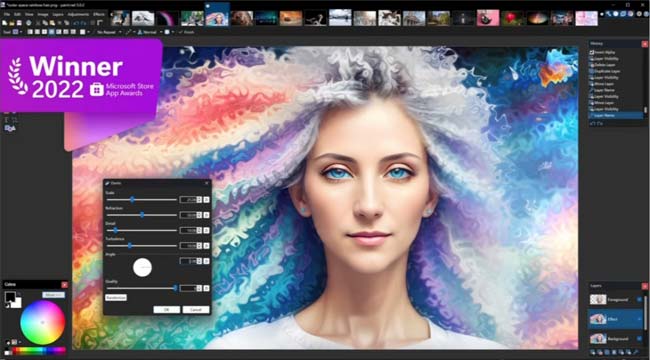
If you are just beginning your editing journey, Paint.NET is an excellent place to start visual customization. You can easily learn how to edit and retouch your raster graphic files. Thanks to its simple user interface!
It was designed to be both intuitive and easy to learn. This software is a very fast image editor that is highly responsive. Hmm…it includes all the tools you need to create a rich, detailed image.
The choice comes down to Illustrator vs. InDesign for professional design work. Illustrator handles individual vector elements while InDesign is best for multi-page layouts that combine both raster and vector graphics files. Furthermore, what if you are looking for a raster vector free conversion tool?
In this case, there are many simple online options available to make a logo scalable. Finally, software that handles both file types is necessary when working with laser cutting software. It translates designs into paths for the machine to follow.
Price:
- Free
Pros:
- It is quick and very responsive to every single action or click.
- It comes with many special effects, including blurring, sharpening, red-eye removal, distortion, and 3D rotate/zoom.
- It provides robust drawing tools for creating curves, gradients, coloring, and handling text editing.
- This program uses the same layer technology found in more expensive software, like Photoshop.
- There is a growing online community that offers many helpful tutorials and plugins.
- It is automatically updated with free features, valuable improvements, and bug fixes.
Cons:
- It is not designed for professionals. This means the program lacks many advanced features, including background remover and AI-powered photo editor tools.
- The way it handles text integration is not as smooth as some other programs on our list.
- Its plugin system is sometimes described as disorganized during the photo editing process.
- Some of its plugins are scattered across forums and sometimes being outdated.
How it compares
Paint.NET presents a somewhat busy interface when you compare it to the most modern software available. However, you absolutely cannot overlook its tools and features, especially for working with raster graphics. Paint.NET is an extraordinary tool to start with if you are just beginning your “Story of Your Life” journey. You can easily learn how to edit and retouch those raster graphics effectively.
It is strictly focused on raster editing and does not support Vector conversion or advanced procedural workflows like a node graph. Being primarily written in Visual Basic and other high-level languages, its performance is excellent. But, its architecture is fundamentally different from software compiled directly into efficient assembly language code.
7. Photoshop

Whether you are a beginner or a professional photographer, you have most likely heard of Photoshop. Furthermore, you probably already know what it can do. Honestly speaking, that is because it is a complete powerhouse.
It is excellent for digital painting – just like the other programs here. But, it is also great bitmap image software for photo editing, animation, and graphic design. Now, it is easily available for desktops and also for iPads.
Its advanced path tools allow for pen point precision when creating complex shapes and masks, with dedicated snapping and alignment tools and layout tools. It ensures perfect placement, although it lacks the symbols and constraints features found in dedicated UI design apps.
Photoshop offers highly customizable export features and can provide accurate pixel previews. But, it follows a professional subscription model rather than a templated, freemium approach like Canva premium plans.
Price:
- $9.99 per month for Lightroom, sans Creative Cloud
Pros:
- You can find countless online tutorials, resources, and support for it everywhere on the web.
- It is a highly light mode but versatile tool that covers digital painting, photography, animation, and graphic design.
- It serves as the go-to resource for professional photo editing. Plus, it offers easy-to-use tools for retouching, like object selection and enhanced transform warp.
- Users get unlimited layers and masks, along with the ability to add text to their work.
- You can sync your desktop and iPad versions. It helps you to easily take your work anywhere.
Cons:
- It is only compatible with either desktop computers or iPad tablets.
- It is not the best tool if you mainly need to handle on-image copy or text.
- The program can be difficult for beginners to use since it is an advanced software.
- Furthermore, it is pricier than most other programs we listed. However, many users find the features worth the cost.
How it compares
If you are an advanced user and have the necessary budget to spend, Photoshop is absolutely one of the best overall image editing programs available. Some of its features are genuinely unmatched across the industry. You can always expect new and innovative features to be released regularly. Plus, the ability to sync to your iPad is a relatively new feature that greatly helps those who are always on the go.
Its raster-based capabilities offer essential preparation for files used with 3D printers, a Vinyl cutter, or a Laser engraver, although vector-focused applications like Corel Draw or Illustrator are often preferred for purely vector-based output. Although Photoshop is not considered one of the primary CAD programs, its powerful image manipulation is frequently used for post-processing and enhancing the visualizations created by them.
8. Corel Painter

Last but not the least, Corel Painter is the best raster graphics editing software in our list. We think this is an excellent digital painting software program. It is really impressive because of its huge number of brushes and deep customization options.
In addition to that, let’s congratulate the creatives on a very advanced interface and helpful tools. It is perfect to use with a stylus. Furthermore, Corel Painter helps save you time with a large amount of powerful features.
Price:
- $429 for full program
- $229 for upgrade
- $199/year for subscription (recommended)
Pros:
- It offers over 900 realistic art brushes across 36 distinct categories.
- The software includes useful tools such as color harmonies, perspective guides, and mirror painting.
- It dynamically responds to your stylus movements and the chosen canvas textures.
- It provides a variety of brush adjustment options, like size, shape, angle, flow, and many more.
- It has automatic performance optimization to guarantee you get the best speed on your device.
Cons:
- It is catered more toward digital painters than traditional photographers.
- It will take a little time to get used to updates from previous versions.
- The program requires newer devices to run smoothly.
- It is pricier than some of the other programs mentioned on our list.
How it compares
Similarly to Artweaver, Corel Painter is one of the best computer graphics software programs. It is clearly more focused on digital paintings than actual photographs. However, this program could be a great fit if that is exactly what you need for your raster graphic work.
In fact, Corel Painter can help you make a very realistic raster graphic photo. It is suitable for you if the software is within your budget and you are an intermediate or advanced user. It does this using its huge variety of brushes and excellent adjustment options.
Frequently Asked Questions on Raster Graphics Editing Software List
What is a raster in software?
A raster in software simply means a digital image made of a grid of tiny dots called pixels. Each pixel holds a specific color value. This format is best for complex images, like high-detail photographs. Remember, the picture has a fixed count of pixels. This means that resizing the image can sometimes have a direct effect on its quality.
What are examples of raster programs?
Examples of raster programs include Adobe Photoshop, GIMP, Corel Painter, and Affinity Photo. These applications are very popular for both editing and creating images that are made of pixels. They provide a range of tools and features designed for different professional needs. This goes from simple image adjustments all the way up to advanced digital painting.
What is a raster graphics software?
A raster graphics software is essentially a program made to create, edit, and change raster images. It gives you the necessary tools for working with pictures based on pixels. This helps users to do things like:
- Retouching photos
- Making original digital art
- Designing graphics that have fine details
Furthermore, these programs are crucial for tasks where you need high image quality and detail. It could be product photography or sports photography.
What are the two raster programs?
The two raster programs that are widely recognized are Adobe Photoshop and GIMP. Adobe Photoshop is a professional software highly favored in the industry for both photo editing and graphic design. On the flip side, GIMP (GNU Image Manipulation Program) is a free and open-source alternative. It provides many similar features. That’s why it is a common choice for those who are looking for a cost-effective solution that still offers great functionality.
Conclusion - Choose the Best Raster Graphics Software for Your Needs!
There is a lot you need to think about when you are deciding on something that should make your life easier. Honestly speaking, you must consider your budget and your current level of expertise. Furthermore, you need to think about the hardware you already own. And, you have to decide if you will have the time to overcome a learning curve. The list just keeps going on.
Our final top picks are Affinity Photo, GIMP, and Pixelmator Pro. This group of raster graphics software is fantastic regardless of your skill level or whether you use a Mac or Windows device. Not only are they highly accessible, but their features are also genuinely comparable to the widely used Photoshop. Plus, they all come in at a much more affordable price point!