

Today we’re tackling a problem that I know every single photographer has run into. We’re going to use the magic wand tool Photoshop provides to give your photos a really clean, professional edge by just getting rid of that distracting background.
You know the feeling, right? We’ve all been there. You get this amazing shot of your subject, the lighting is perfect, the pose is great, but the background? It’s just wrong. It’s busy, it’s cluttered, and it’s totally stealing the spotlight. That is exactly why learning how to use the magic wand tool in Photoshop is a lifesaver. Among all the selection tools in Photoshop, the magic wand is one of those classic image editing tools in Photoshop that helps you isolate subjects in seconds.
If you’re wondering where the magic wand tool is in Photoshop 2026, it’s tucked under the object selection group; just look for the magic wand tool shortcut, which is the W key Photoshop pros always use. If you find the Photoshop magic wand tool missing, don’t panic! It’s likely just hidden behind the quick selection tool. Once you have it, you can refine your selection by adjusting the Tolerance, toggling the Contiguous option, or turning on anti-aliasing for smoother edges. You can even check Sample all layers to select across your whole project.
Let’s dive below for a detailed explanation on how to use the magic wand tool in Photoshop!
Before & After: The Transformation You Can Achieve with the Magic Wand Tool
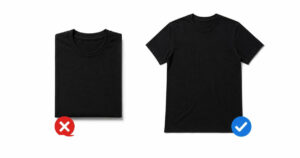
So what if I told you that you could go from this—this cluttered desk shot with a messy background and black and white contrast on the left—to this super clean, professional look on the right? I mean, this is the kind of product photo background removal you’d see on a top-tier retail website. Well, the good news is you totally can using Photoshop background removal. And believe it or not, it only takes a few clicks to eliminate background Photoshop clutter and create a high-quality composite photo.
If you’ve ever wondered how to make an image’s background transparent, the secret is using the magic wand for background removal. You can quickly make a transparent background in Photoshop style by selecting those solid colors and hitting delete. Whether you need to remove a background in Photoshop online or in the desktop app, knowing how to make a background transparent in Photoshop allows you to create a perfect transparent PNG selection.
Once you make the background transparent, Photoshop will show that classic checkerboard pattern, meaning you can easily change the background Photoshop layers to anything you like. So, if you’re stuck on how to remove the white background in Photoshop for a logo or a product, just use the magic wand transparent settings to get that crisp, Photoshop transparent background instantly.
What is the Magic Wand Tool?
Okay, let’s dive right in. The hero of our story, the simple tool that makes this whole transformation possible, is the magic wand tool. This little guy is going to be the star of the show today.
So, what is the magic wand tool in Photoshop? Well, it’s not literally magic, but it’s pretty darn smart. What the magic wand tool does is essentially a color-based selection. Think of it like this: when you click on one spot, the magic wand selection tool looks at that specific color and then immediately grabs all the neighboring pixels that are the same or at least very similar in tone.
That’s why this fuzzy selection tool (as some old-school pros call it) is so good for selecting huge chunks of an image with a solid color, like a clear blue sky or a simple studio background. When you use the magic wand tool in Photoshop, you’re letting the software do the heavy lifting of finding those matching shades so you can mask or delete them in a single click.
What is the Magic Wand Tool used for?
The select tool in Photoshop isolates specific pixels. Many users ask what a magic wand is used for in design. The tool selects a consistently colored area based on the tolerance value. It serves as a powerful background removal tool. This utility excels at magic wand for background removal. It helps you select a solid color area quickly. You can remove the white background with one click.
It allows you to select by color Photoshop settings. The wand helps with removing objects in Photoshop. Photoshop’s professional selection tools provide great control. You can select a uniform color area easily. Users perform object removal in Photoshop for clean products.
How to select and mask in Photoshop with the Magic Wand Tool

Begin your photo edit in Photoshop by pressing W. You start selecting and masking in Photoshop with a click. The tool creates a layer mask magic wand users love. Access the Select and Mask workspace for better details. Use the wand tool for masking solid backgrounds. You must refine magic wand selection for hair.
The magic wand refine edge brush fixes fuzzy borders. Apply a feather selection Photoshop effect for realism. This helps smooth selection edges perfectly. You can use the magic wand inverse selection to switch focus. Use the select inverse shortcut in Photoshop for speed.
Check your Layers panel for the new mask. Look at the background layer for changes. Professional image masking preserves the original pixels. Every photography editing task needs clean edges. Photo editing requires precise selection. High-quality image editing depends on a good layer structure.
Step 1: Unlock the background and select the Magic Wand Tool
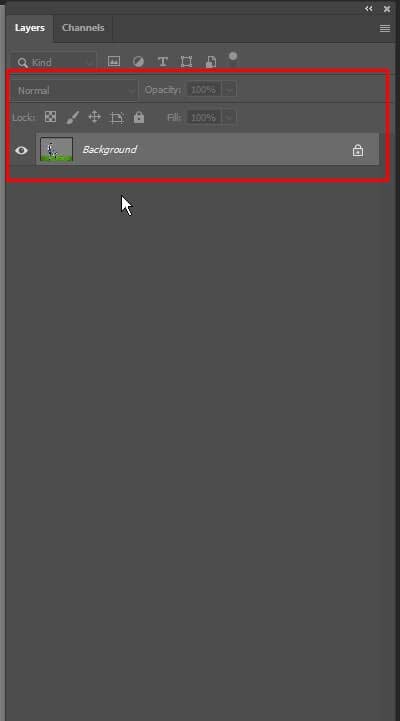
You must unlock background layers first. Click the lock icon on the Background layer. This creates an editable layer. Find the Photoshop wand tool in the Tools panel. Many beginners ask where the magic wand tool is in Photoshop.
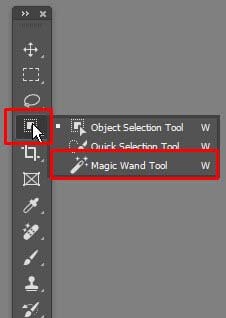
It shares a slot with the Quick Selection tool. You can select the Magic Wand Tool by pressing W. The magic wand cursor looks like a sparkling stick. Check your magic wand tool settings at the top.
Step 2: Select the solid areas of the background using the Magic Wand Tool
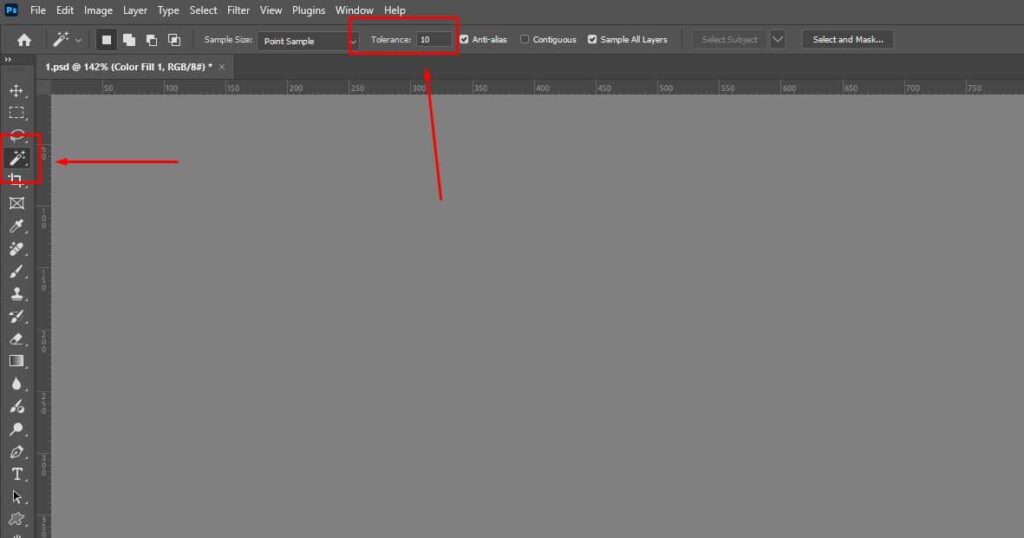
The tool helps you select solid areas. One click will select similar colors automatically. The contiguous selection option picks only touching pixels. You must adjust the magic wand tolerance for better results. A low-tolerance wand picks very specific shades. A high tolerance selection captures a wider range.
Use a tolerance 0 magic wand for exact matches. The tolerance setting on the Photoshop bar changes the selection size. This works best with a good background color. High contrast makes a black and white background selection easy.
Step 3: Select Other Portions of the Background and Foreground with the Magic Wand Tool
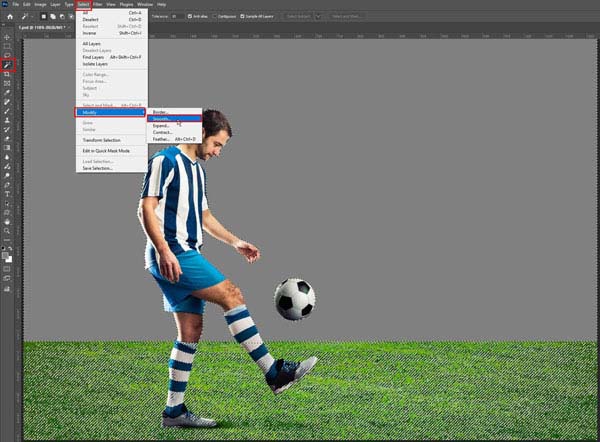
Use the Shift key for more clicks. This allows you to add to the selection of magic wand areas. You can add selection Photoshop regions easily. Shift-click magic wand spots until the background is full. Disable contiguous for a non-contiguous selection across the image. Check the sample of all layers for complex files.
The anti-aliased selection keeps edges smooth. You can subtract from the selection by holding Alt. Perform an inverse selection to target the subject. This add-to-selection Photoshop method saves time.
Step 4: Create a mask with the Magic Wand Tool
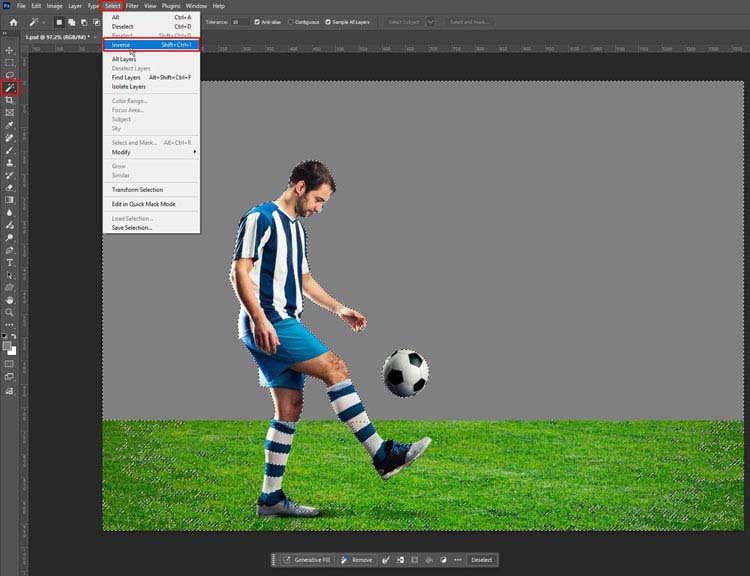
You must create mask layers for nondestructive editing. A layer mask magic wand selection isolates the subject. This magic masking hides the unwanted background.
Click the mask icon to create a mask instantly. The layer mask thumbnail appears in the Layers panel. Your subject stays safe on a transparent base.
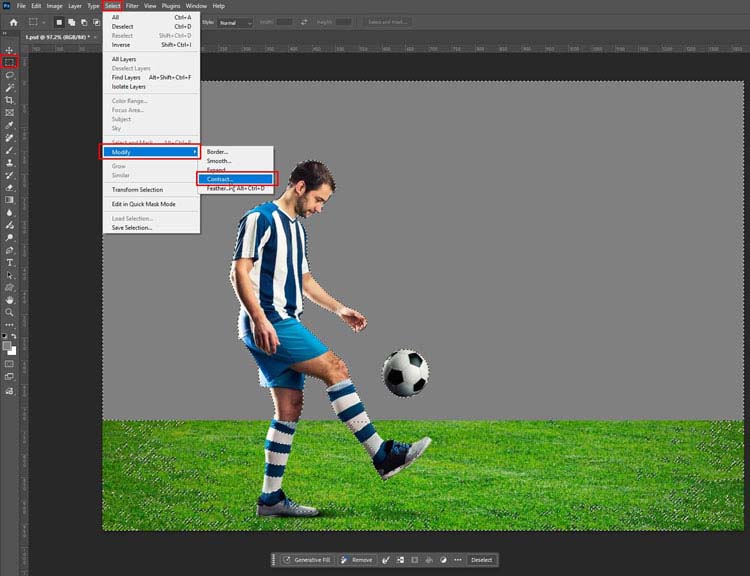
Click OK
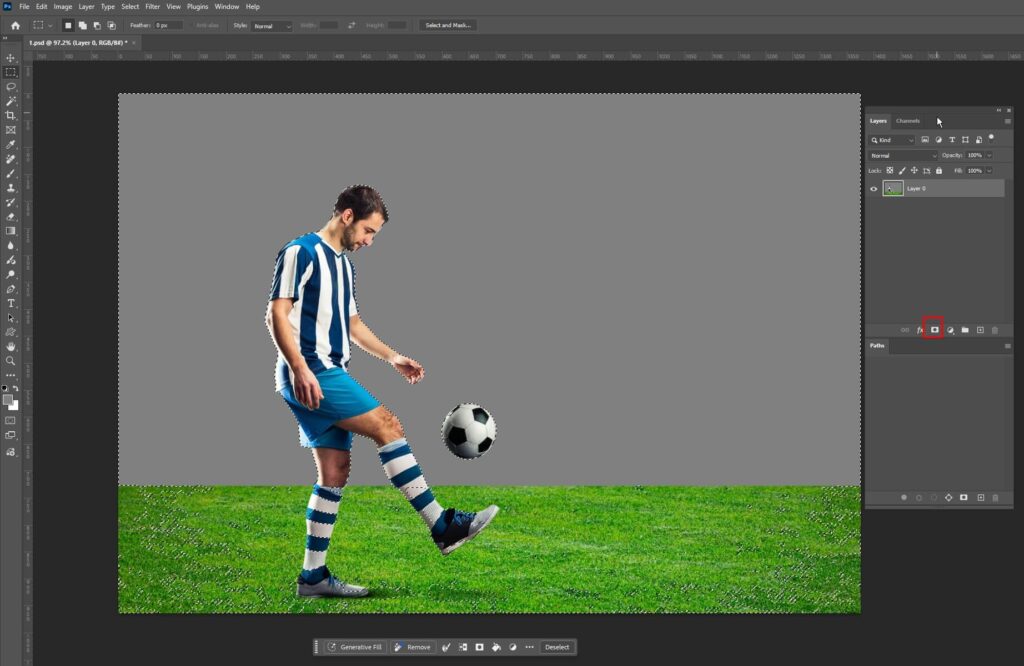
Layer 0 selected, click on the Mask icon. subject isolated transparent background.
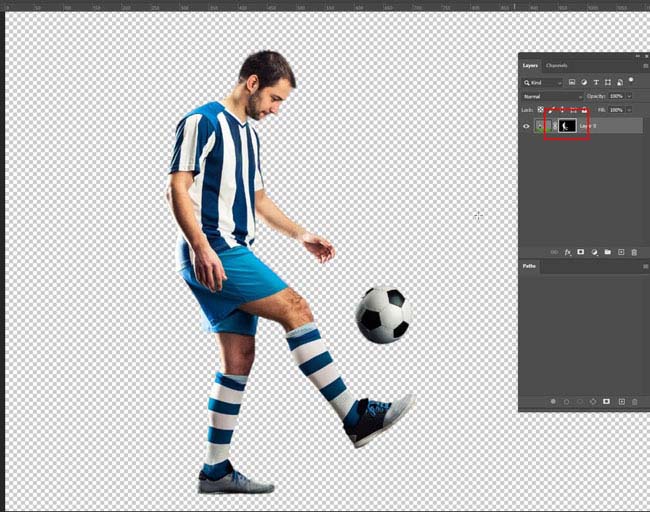
Step 5: Clean up the selection using the mask.
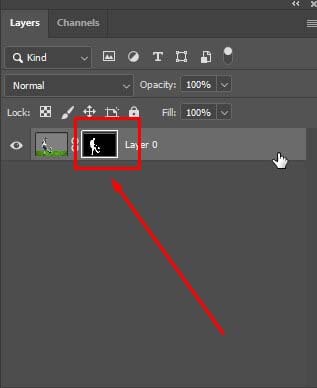
You need to clean selection edges for realism. The Refine Edge Tool fixes hair details. Use Refine Edge settings for smooth borders. This helps you clean up selection errors.
A jagged selection fix involves the brush tool. Painting with black removes a magic wand halo effect. You can expand selection magic wand borders if needed. The contract selection tool hides thin outlines. Try to grow the selection Photoshop areas for better coverage.
Mastering Tolerance for Difficult Backgrounds with the Magic Wand Tool
Okay, that’s great for simple backgrounds, but what about when it’s not a perfectly solid color? What if there are shadows or gradients? Well, that’s where this little pro tip comes in. This is how you take control and really finesse your selection, even on difficult backgrounds or trickier photos.
The secret weapon here is mastering tolerance. Don’t let the name scare you; the tolerance setting Photoshop provides is super simple. You’ll see it right up in the options bar at the top of your screen anytime you have the tool selected. If you find your magic wand not working the way you expect—maybe it’s being too picky, or your magic wand selects everything in sight—it’s all down to this one number.
All this value does is tell Photoshop how many pixel variations to include when it’s picking colors. It’s the key to complex background removal.
- Low Tolerance (e.g., 10): Very precise; it limits the magic wand tolerance to almost exact matches, great for flat uniform backgrounds.
- High Tolerance (e.g., 50): More forgiving; it expands the magic wand selection to include more colors, perfect for gradients, texture, or uneven lighting.
Just remember the magic wand limitations; if the background and subject are too similar in color, you’ll need to adjust the tolerance magic wand values carefully to get that perfect edge.
Other ways to select and mask using the Magic Wand Tool in Photoshop
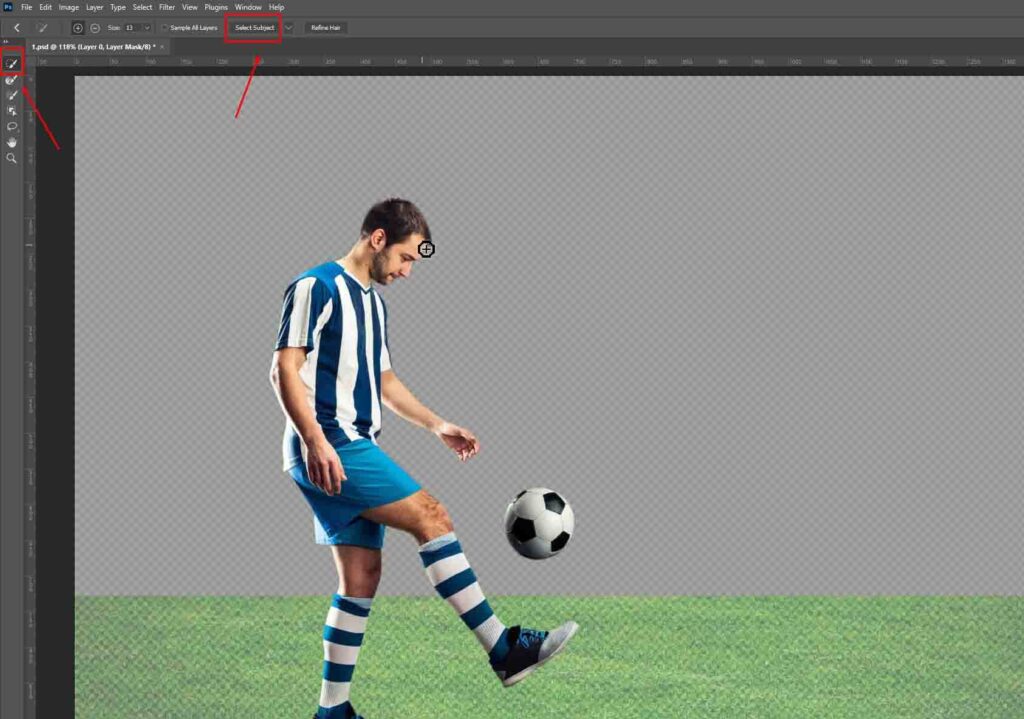
Photoshop selection features improve workflow efficiency. Users combine the magic wand with the quick selection tool. The latest magic wand updates allow non-contiguous color sampling. People often compare magic wand vs quick selection for speed. The object selection tool offers precise AI boundaries. Professional editors use Select Subject in Photoshop for instant masks. AI-powered selection handles complex edges like hair.
Many artists consider alternatives to magic wands for better control. The lasso tool vs. magic wand debate continues for organic shapes. Users enjoy the Polygonal Lasso Tool for straight edges. The magnetic lasso tool snaps to high-contrast borders. Experts prefer the pen tool in Photoshop for perfect curves.
Learning the pen tool for Photoshop ensures professional results. You can find many Photoshop pen tools in the sidebar. The Select and Mask workspace refines rough selections. These Photoshop selection tools provide total creative freedom.
When to use the Magic Wand Tool for your photos
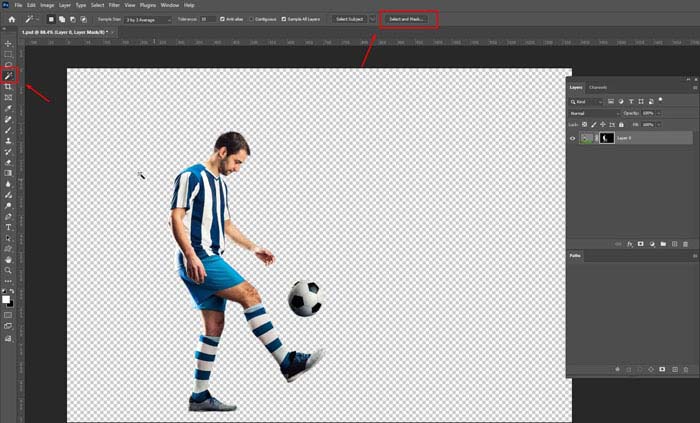
All right, so you’ve mastered the magic wand for beginners. You’ve got this new superpower in your toolkit. The real question is, what are you going to do with it?
I mean, seriously, the possibilities are pretty much endless. You can now create those perfect, crisp, best tool for white background product shots that look amazing for e-commerce product photography on websites like Amazon. When to use the magic wand: it really shines for e-commerce image editing because it’s so fast.
Or you could use a magic wand for sky replacement to swap out a dull horizon or utilize a magic wand for logo cutout to drop a brand into a totally different location. You can even isolate a product using professional photo editing software just so you can change the color of the background Photoshop layers or even change the BG color in Photoshop for the product itself without having to do a whole new expensive photo shoot. Whether you want to blur background Photoshop elements or prep pictures to sell online with a magic wand for PNG export, it’s really all about giving you total creative freedom in your product photography.
Frequently Asked Questions on How to Use the Photoshop Magic Wand Tool
Where is the magic wand tool in Photoshop 2026?
You find the magic wand tool in Photoshop in the left sidebar. It hides behind the Quick Selection tool. This is where the magic wand is in Photoshop. Right-click the icon to reveal it.
How to use the magic wand tool in Photoshop 2026?
The Adobe Photoshop magic wand tool selects similar colors. You click a specific area. Adjust the tolerance for better precision. This is how to use the magic wand tool in Photoshop.
How to use the Photoshop magic wand tool for free in 2026?
Adobe offers a seven-day free trial. You can try the magic wand tool online via the web version. This allows Photoshop magic wand testing. Students get free access through schools.
What is the Magic Wand tool Photoshop shortcut in 2026?
The W key Photoshop activates the tool. Use Shift + W to cycle icons. This is the magic wand tool shortcut. Use the shortcut for select inverse in Photoshop later.
Conclusion
Look, at the end of the day, this isn’t just some technical trick. It’s a really fundamental skill that puts you in the driver’s seat of your own creative vision. It lets you literally separate your subject from its original world and tell a completely new story. If you are having trouble in using the Photoshop magic wand tool with your own expertise, our experts at GraphicXer is here to help you!